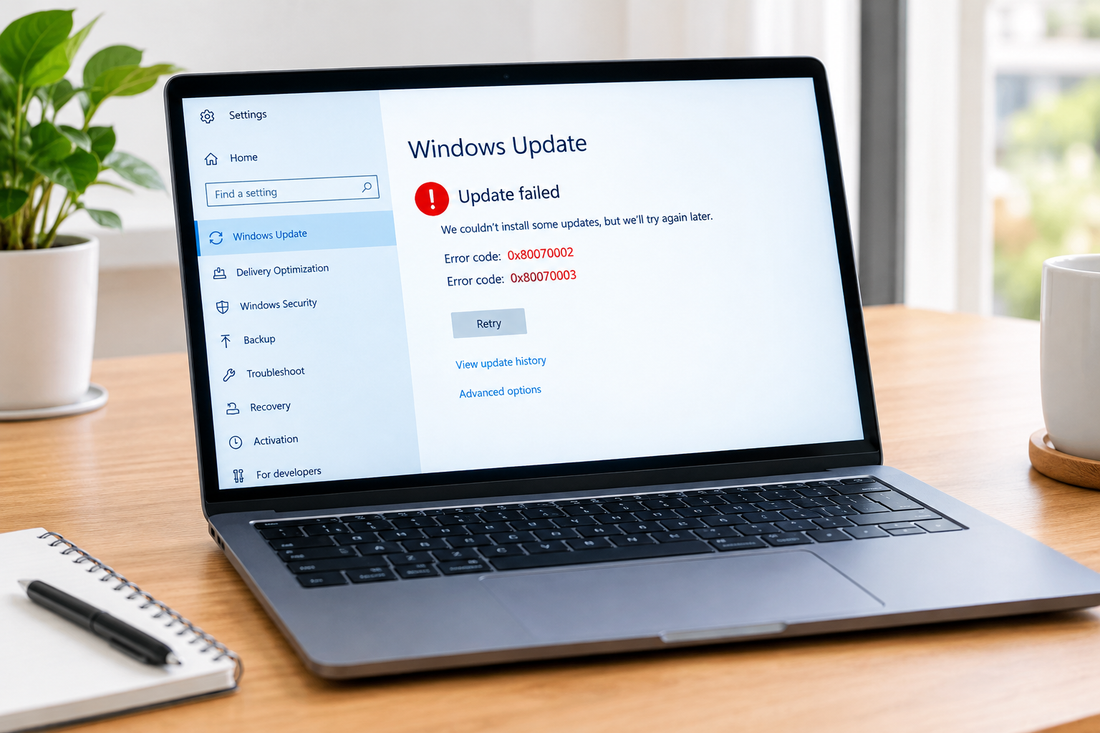
How to Fix Windows Update Error 0x80070002 and 0x80070003 (2026 Guide)
Last updated less than a minute ago
Windows Update showing 0x80070002 or 0x80070003 can prevent an update from downloading or installing correctly. These errors can be related to failed update files, the Windows Update cache, system-file problems, or a path that Windows cannot access.
Start with the quick fixes below. If the error remains, continue with the advanced solutions.Laptop Displaying Windows Update Error.png 1.75 MB
What Does Error 0x80070002 and 0x80070003 Mean?
Error 0x80070002 is associated with ERROR_FILE_NOT_FOUND, meaning Windows cannot find a required file.
Error 0x80070003 is associated with ERROR_PATH_NOT_FOUND, meaning Windows cannot find or access a required path.
In Windows Update, Microsoft lists both errors as update installation failures. Common troubleshooting steps include restarting the PC, running the Windows Update troubleshooter, checking storage, clearing the update cache, and repairing Windows system files.
The problem can happen because of:
Incomplete update downloads
Corrupted Windows Update cache
Damaged system files
A required Windows path or file being unavailable
Insufficient free storage
A previous update that did not finish correctly
Quick Fix
Before changing Windows Update components, try these basic steps:
Restart your computer.
Make sure your PC is connected to the internet.
Check that the Windows drive has enough free space.
Disconnect unnecessary USB drives and external hardware.
Make sure you are signed in with an administrator account.
Open Settings → Windows Update.
Select Check for updates.
If the update installs normally after the restart, you do not need to use the advanced fixes.
Microsoft recommends checking the internet connection, administrator access, external hardware, storage, and other basic conditions before moving to more advanced troubleshooting.
Fix 1: Run the Windows Update Troubleshooter
Windows includes a built-in troubleshooter that can detect common Windows Update problems.
Windows 11
Open Settings.
Select System.
Select Troubleshoot.
Select Other troubleshooters.
Find Windows Update.
Select Run.
Follow the instructions on the screen.
Restart your PC.
Open Windows Update and select Check for updates.
Microsoft currently recommends starting with the Windows Update troubleshooter when troubleshooting update problems.
Windows 10
Open Settings.
Select Update & Security.
Select Troubleshoot.
Open the available Windows Update troubleshooting option.
Follow the instructions.
Restart the computer.
Try the update again.
If the troubleshooter does not solve the problem, continue to the next fix.
Fix 2: Clear the Windows Update Cache
A corrupted or incomplete update download can interfere with a new update. Clearing the contents of the Windows Update cache can force Windows to create fresh update files. Microsoft includes this procedure in its Windows Update troubleshooting guidance.
Step 1: Stop Windows Update
Press Windows + R.
Type:
services.msc
Press Enter.
Find Windows Update.
Right-click it.
Select Stop.
Step 2: Clear the Update Cache
Open File Explorer.
Go to:
C:\Windows\SoftwareDistribution
Delete the files and folders insideSoftwareDistribution.
Do not delete your personal files or folders elsewhere on the computer.
Step 3: Start Windows Update
Return to the Services window.
Right-click Windows Update.
Select Start.
Restart your computer.
Open Settings → Windows Update.
Select Check for updates.
If the error was caused by a damaged update cache, Windows can now download the update files again.
Fix 3: Repair Windows System Files
If Windows system files are damaged, updates may fail even after clearing the update cache.
You can use DISM and System File Checker (SFC) to check and repair Windows components.
Step 1: Run DISM
Open Start.
Search for Command Prompt.
Right-click it.
Select Run as administrator.
Run:
DISM /Online /Cleanup-Image /RestoreHealth
Wait for the command to finish.
Step 2: Run SFC
After DISM finishes, run:
sfc /scannow
Wait until the scan reaches 100%.
Step 3: Restart Windows
Restart your PC and try Windows Update again.
If the problem was caused by damaged Windows components or system files, these repair tools may resolve it. Microsoft also recommends system-file repair as part of troubleshooting certain Windows Update installation problems.
Advanced Fix: Reset Windows Update Components
If 0x80070002 or 0x80070003 continues after the previous fixes, you can reset additional Windows Update components.
Before running these commands, make sure Command Prompt is running as Administrator.
Do not keep repeating the command. For example, if Windows says a folder cannot be found or is already being used, check the service status and folder path before continuing.
Also, avoid deleting random Windows system folders or changing registry entries unless you have identified a specific problem and have a backup.
How to Identify the Cause
If the same error keeps appearing, Windows logs can help identify what failed.
For 0x80070003, Microsoft specifically recommends checking the CBS.log because the error can indicate that the servicing stack cannot access a particular path.
The log is located at:
C:\Windows\Logs\CBS\CBS.log
Open the file and look for entries containing:
error
Pay attention to entries created around the same time that the Windows Update installation failed.
What to look for
If the log references:
A missing file → investigate the referenced file or system component.
A missing path → verify that the referenced directory exists.
Component-store problems → run DISM and SFC.
Update cache problems → reset the Windows Update cache.
A specific update package → troubleshoot that update separately.
This approach is more useful than repeatedly trying random commands because the CBS log can reveal the specific path or component involved in some 0x80070003 failures.
Frequently Asked Questions
How do I fix Windows Update error 0x80070002?
Start by restarting your PC and running the Windows Update troubleshooter. If the error continues, clear the SoftwareDistribution cache and run DISM followed by SFC.
What does error 0x80070003 mean?
0x80070003 is associated with ERROR_PATH_NOT_FOUND. It can occur when the Windows servicing stack cannot access a required path. Microsoft recommends checking the CBS log when this error persists.
Is 0x80070002 the same as ERROR_FILE_NOT_FOUND?
Yes. 0x80070002 corresponds to ERROR_FILE_NOT_FOUND, meaning the system cannot find a required file. In Windows Update, however, the underlying reason can vary.
Can clearing SoftwareDistribution fix Windows Update errors?
It can help when corrupted or incomplete update-cache files are preventing an update from installing. Microsoft includes clearing the contents of SoftwareDistribution as a Windows Update troubleshooting step.
Should I run DISM or SFC first?
For this troubleshooting sequence, run DISM first and SFC afterward. Then restart Windows and check for updates again.
What if 0x80070002 or 0x80070003 still appears?
If the basic fixes do not work, reset the Windows Update components and check C:\Windows\Logs\CBS\CBS.log for information about the failed installation. For 0x80070003, Microsoft specifically recommends using the CBS log to identify the inaccessible path.
Can I delete the entire Windows folder to fix the error?
No. Never delete Windows system folders to troubleshoot a Windows Update error. Use the supported troubleshooting steps instead.
Final Solution
The easiest way to troubleshoot Windows Update error 0x80070002 and 0x80070003 is to work through the fixes in order.
Restart the PC and check Windows Update.
Run the Windows Update troubleshooter.
Clear the SoftwareDistribution cache.
Run DISM and SFC.
Reset Windows Update components if necessary.
Check the CBS log if the error continues.
You do not need to use every method if an earlier fix solves the problem. Once Windows Update installs successfully, stop troubleshooting and use the PC normally.