How to Fix Windows 11 Update Error 0x800F0922
Last updated less than a minute ago
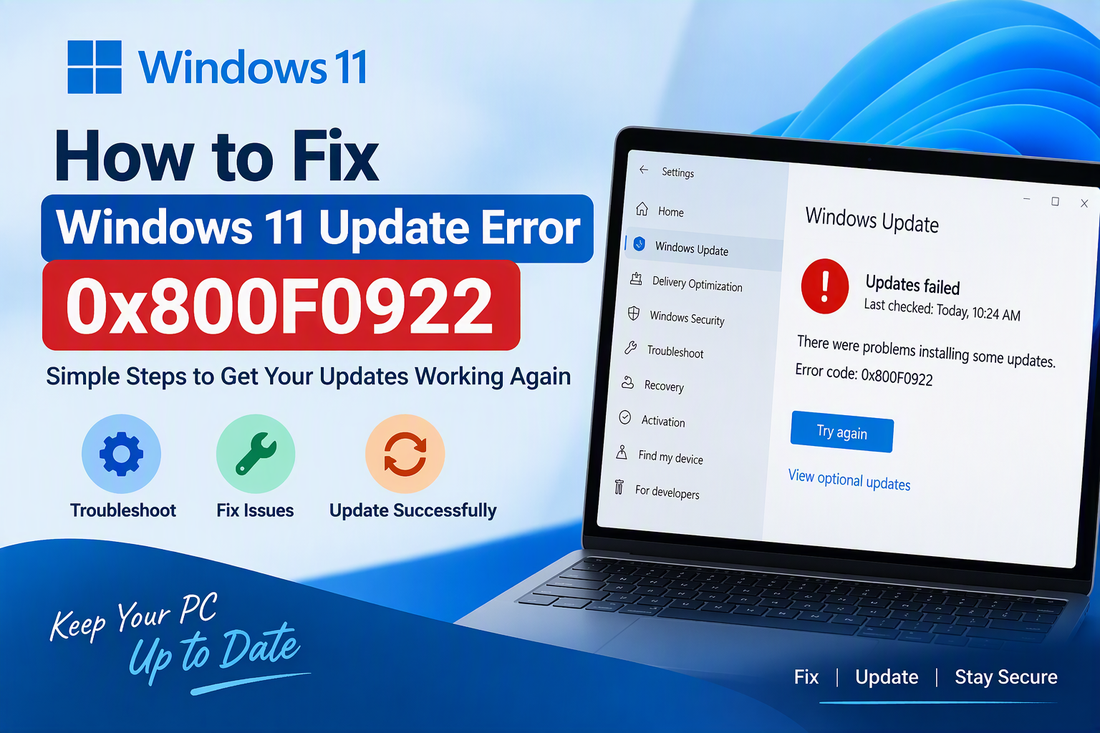
Windows updates are essential for keeping your PC secure, stable, and up to date. However, some users encounter Windows 11 Update Error 0x800F0922 when installing cumulative updates, feature updates, or .NET Framework updates. This error may prevent updates from installing successfully and can cause Windows to roll back recent changes. The error is commonly linked to installer failures, insufficient space in system partitions, disabled services, or corrupted update components.
What Causes Error 0x800F0922?
Windows 11 Update Error 0x800F0922 may occur due to:
- Disabled App Readiness service
- Corrupted Windows Update files
- Insufficient space in the System Reserved Partition
- Third-party antivirus interference
- Damaged system files
Fix 1: Restart Your Computer
Sometimes a simple restart can resolve temporary update issues.
- Save your work.
- Restart your PC.
- Go to Settings > Windows Update.
- Click Check for updates.
Fix 2: Enable App Readiness Service
- Press Windows + R.
- Type services.msc and press Enter.
- Find App Readiness.
- Set Startup Type to Manual.
- Click Apply and restart your PC.
Fix 3: Run Windows Update Troubleshooter
- Open Settings.
- Select System > Troubleshoot > Other troubleshooters.
- Click Run next to Windows Update.
- Follow the instructions on the screen.
Fix 4: Repair System Files
Open Command Prompt as Administrator and run:
sfc /scannow
Wait for the scan to complete and restart your computer.
Fix 5: Clear Windows Update Cache
- Open Command Prompt as Administrator.
- Run:
- net stop wuauserv
- net stop bits
Delete files inside:
C:\Windows\SoftwareDistribution
Restart the services:
- net start wuauserv
- net start bits
Try installing the update again.
Fix 6: Check Disk Space
Windows updates may fail if there is not enough free space in the System Reserved or EFI partition.
Conclusion
Windows 11 Update Error 0x800F0922 is usually caused by update service issues, damaged system files, or insufficient partition space. By enabling the App Readiness service, running the Windows Update troubleshooter, repairing system files, and clearing the update cache, most users can successfully install their Windows updates.